To login to MySql database from a commend line you can use
mysql -u root -p;
after hitting enter system will ask you for the password or you can use this command
mysql -u root -pPassword;
Once login to the database you have to select the database to work with.
Wednesday, April 17, 2013

MySql view database list, switch database and list tables
If you are running MySql form command line and you like to see list of all the database then simply run this command after login to the mysql
show databases;
this command will list all the database that are on MySql server.
If you like to work with one of the database then you can select the database with.
use database_name;
Once in the Database you like to see the list of the table use.
show tables;
This command will show the list of all the tables in that database.
show databases;
this command will list all the database that are on MySql server.
If you like to work with one of the database then you can select the database with.
use database_name;
Once in the Database you like to see the list of the table use.
show tables;
This command will show the list of all the tables in that database.
MySql Backup Database with mysqldump
To backup MySql Database from command line.
mysqldump -u user_name -p Database_Name > backup-file.sql
In windows xp, 7, or 8 simply run the above command in CMD. It will place the backup-file.sql in the same direcotry where you run the command from.
for more information look at mysqldump
mysqldump -u user_name -p Database_Name > backup-file.sql
In windows xp, 7, or 8 simply run the above command in CMD. It will place the backup-file.sql in the same direcotry where you run the command from.
for more information look at mysqldump
Wednesday, January 2, 2013
DNN Form and List module change the label for CAPTCHA
To change the label for the Captcha on the form and list module go to Admin -> Languages then click on the edit icon under static resources site for the culture english or for the language pack you like to change the text for.

On the left site you will see language editor with two option Local Resources and Global Resource click the + on Global Resources you will see four option click on Shared Resources.

Page will reload and on that page search for CaptchaText.Text. Click on the edit icon next to the text box and update the value you like and click update you are done.
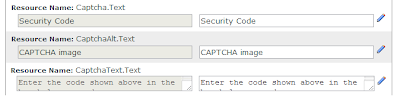

On the left site you will see language editor with two option Local Resources and Global Resource click the + on Global Resources you will see four option click on Shared Resources.

Tuesday, January 1, 2013
Running your web application on iPhone as it's a native app
Configure your Web Application to work on iPhone/iPad/iPod as it is a Native app.

Change the "href" with your own image name and location.
Change the "href" to your image name and location.
Step 4: Hiding safari user interface components
Once the user tap the app icon on the home screen, you want it to open in standalone mode so it looks more like native application to achieve that add this meta tag:
window.navigator.standalone
Step 5: Changing the status bar appearance
In order to change the status bar appearance you have to have apple-mobile-web-app-capable meta tag in your page's head section. The meta tag is as below:
<meta name="apple-mobile-web-app-status-bar-style" content="black" />
There are three option for content.
black - Content will show under the status bar
Start of with your web application, make sure it's bug free and ready to go live. Next step is to open the application on your iPhone and make sure the CSS is working the way you like it on the iPhone. Once every thing looks good on "iPhone safari", then you are ready to configure the web application to work on iPhone safari full screen.
We need to add few meta tags in applications head section of the page. So let's get this done. There are 6 steps.
Step 1: Suggest user to add this web application on the home screen.

To run the web application in the full browser mode, we need to bookmark the application on the home screen. To do that we will use a excellent JQuery by Matteo Spinelli that will remind the user to bookmark the application on the home screen once they open your application on iPhone safari browser. You can download the Code and how to set up from Add to Home Screen.
Step 2: Web clip webpage icon
Once the user tap on the Add to home screen on iPhone, it will create an icon from the web application or you can upload a custom icon to use for this application. All you need is a 57px X 57px icon. Once you save it iPhone will add the round corners and glossy effect for you so you don't have to worry about it.
There are few different Apple devices out there with different sizes for the icon, below is a list of them. Put them on your html page under the head section, that will save a custom icon on the home screen.
Normal (57 X 57 no retina display)
<link rel="apple-touch-icon" href="icon.png"/>
Normal iPad (72 X 72 no retina display)
<link rel="apple-touch-icon" href="icon72.png" sizes="72x72"/>
For iPhone (114 X 114 retina display)
<link rel="apple-touch-icon" href="icon114.png" sizes="114x114"/>
For iPad (144 X 144 retina display)
<link rel="apple-touch-icon" href="icon144.png" sizes="144x144"/>
Change the "href" with your own image name and location.
You can find out more information on custom icon.
Step 3: Specifying a start up image
I love it when user tap on the web app icon on the home screen and it shows them a splash image like it's not a web app but a native app. It will not show safari loading your app but your custom image. The meta tag you need to add for this is:
<link rel="apple-touch-startup-image" href="/splash.png">
Change the "href" to your image name and location.
Step 4: Hiding safari user interface components
Once the user tap the app icon on the home screen, you want it to open in standalone mode so it looks more like native application to achieve that add this meta tag:
<meta name="apple-mobile-web-app-capable" content="yes" />
If you want to check if app is in standalone mode then you can check it, with this read only property in java script. If you are in standalone mode then it will return true else false.window.navigator.standalone
Step 5: Changing the status bar appearance
In order to change the status bar appearance you have to have apple-mobile-web-app-capable meta tag in your page's head section. The meta tag is as below:
<meta name="apple-mobile-web-app-status-bar-style" content="black" />
There are three option for content.
black - Content will show under the status bar
default - Content will show under the status bar
black-translucent - Content will show on the full screen, so the status bar will come over the content.
Step 6: Staying inside the safari standalone mode when clicking on links
One big issue that comes up in web application when running in standalone mode is that when user click on a link it will open up in safari not in the standalone mode or full screen mode. To over come this we will replace all the link tags <a/> with JQuery so that instead of doing the default task we change the location of the standalone screen. To do that, just add this JQuery on your page:
$(document).on(
"click",
"a",
function (event) {
if (window.navigator.standalone) {
// Stop the default behavior that will open in all the links in safari.
event.preventDefault();
// Change the location of the page to stay in "Standalone" mode.
location.href = $(this).attr('href');
}
}
);
That's all you need to run your web application on iPhone as if it is a native app, easy as 1,2,3 rite?
black-translucent - Content will show on the full screen, so the status bar will come over the content.
Step 6: Staying inside the safari standalone mode when clicking on links
One big issue that comes up in web application when running in standalone mode is that when user click on a link it will open up in safari not in the standalone mode or full screen mode. To over come this we will replace all the link tags <a/> with JQuery so that instead of doing the default task we change the location of the standalone screen. To do that, just add this JQuery on your page:
$(document).on(
"click",
"a",
function (event) {
if (window.navigator.standalone) {
// Stop the default behavior that will open in all the links in safari.
event.preventDefault();
// Change the location of the page to stay in "Standalone" mode.
location.href = $(this).attr('href');
}
}
);
That's all you need to run your web application on iPhone as if it is a native app, easy as 1,2,3 rite?
Tuesday, May 22, 2012
How to check if an image exist on the remover server in PHP
If you are using a remote image or file in you PHP application and like to make sure image exist before using the image. It will help you keep you application clean if the image exist then you can show the image and if the image is removed that you don't have any control over, you can show the placeholder image or don't show any image.
So how it's done.
This function is fast when it comes to checking the image file or any other file.
So we are passing in variable called $url in this function. that is then passed into the File_Get_Contents function and it only get 1 bit from the file. If file_get_contents get 1 bit then this function will return 1 else it will return 0. you can use that in you code to show the image or don't it's you call.
So how it's done.
function Check_Image($url)
{
 if(@file_get_contents($url,0,NULL,0,1))
 {
  return 1;
 }
 else
 {
  return 0;
 }
}
This function is fast when it comes to checking the image file or any other file.
So we are passing in variable called $url in this function. that is then passed into the File_Get_Contents function and it only get 1 bit from the file. If file_get_contents get 1 bit then this function will return 1 else it will return 0. you can use that in you code to show the image or don't it's you call.
Friday, November 4, 2011
ASP.NET runtime error: The base class includes the field 'ScriptManager1', but its type (System.Web.UI.ScriptManager) is not compatible with the type of control (System.Web.UI.ScriptManager)
You will get this error when you have more then one AJAX Tool kit version install on the same computer. To solve this issue you need to add this code in you Web.config file.
<runtime>
<assemblyBinding xmlns="urn:schemas-microsoft-com:asm.v1">
<dependentAssembly>
<assemblyIdentity name="System.Web.Extensions" publicKeyToken="31bf3856ad364e35" Culture="neutral"/>
<bindingRedirect oldVersion="1.0.61025.0" newVersion="3.5.0.0"/>
<publisherProfile apply="no"/>
</dependentAssembly>
</assemblyBinding>
</runtime>
This will tell the application at run time which verison of the AJAX to use.
<runtime>
<assemblyBinding xmlns="urn:schemas-microsoft-com:asm.v1">
<dependentAssembly>
<assemblyIdentity name="System.Web.Extensions" publicKeyToken="31bf3856ad364e35" Culture="neutral"/>
<bindingRedirect oldVersion="1.0.61025.0" newVersion="3.5.0.0"/>
<publisherProfile apply="no"/>
</dependentAssembly>
</assemblyBinding>
</runtime>
This will tell the application at run time which verison of the AJAX to use.
Subscribe to:
Posts (Atom)